How to Use the Economizer’s Substack Chat
Economizer Red Zone Special Edition #5426

Everything you need to know to join conversations, start threads, learn more, and get answers connect — in five simple steps.
Let’s learn this together!
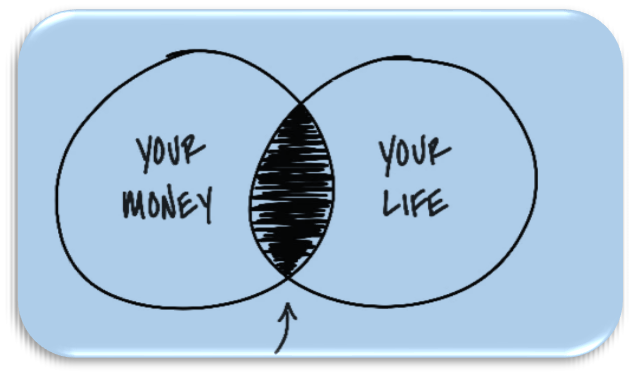
Substack Chat is a feature that enhances how much you get from my newsletters. Unlike the one-way experience of reading an email in your inbox, Chat turns your always free subscription into an ongoing, real-time conversation — with me, my guests and fellow readers who share your interests. Here’s the five steps for the max experience.
The Five Steps
1. Access Chat
Open the Substack app on your phone or Substack on the web. Look for the Chat icon in the navigation — tap or click it and you’ll see a list of all my publications you subscribe to, organized so the most recently active threads appear first. Your entry point is always just one tap away.
2. Join a Thread
Tap any thread to dive in. You’ll be able to read the full conversation between me, my guests and other subscribers. You can participate by replying with text, sharing an image or video, or simply using an emoji. Just reading is absolutely fine.
3. Start Your Own Thread
Have something to share? I have allowed reader participation; you’ll see a text box that says “Start a new thread“ — tap it and go. This is your space to pose a question, share a thought, or kick off a discussion with fellow subscribers.
4. Reply to Others
Replying works slightly differently depending on whether you’re on a browser or the app:
On the web: Hover over a message and click the curved arrow that appears on the right side.
On the app: Touch or long-press a message — a drop-down menu will appear with a “Reply” option.
When replying to a comment on the original post (rather than the post itself), choose “Reply in a new subthread” to keep conversations neat and easy to follow.
5. Manage Notifications
You won’t want to miss a reply from a creator you admire. To make sure you stay in the loop, tap your profile picture, select Settings, then tap Notifications. Scroll to the Chat section and make sure the relevant boxes are checked — this enables push notifications for new threads, replies, and reactions.
Key Things to Keep in Mind:
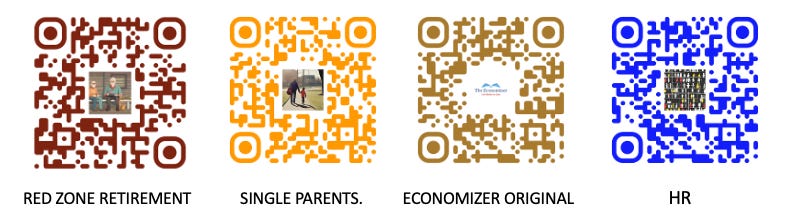
Chat is private and subscriber-only. Only subscribers to my four newsletters can access the Chat. Non-subscribers cannot see it at all- sorry about that. Make sure you are a subscriber QR codes below
It’s more real-time than comments. Chat moves faster and is more like a conversation than an old school comment section — think of it like a group text. (I still have trouble with my family on groups texts)
Photos and videos are supported. Unlike Substack’s standard comment system, Chat lets you share images and video.
Chat is one of the simplest ways to get more out of your Substack subscriptions. Whether you dive into a thread or just follow along quietly, you’re part of something more than a newsletter — you’re part our community. So go ahead, find a thread, and say hello.
I have created 4 unique newsletters designed for the the unique needs of:
Human Resources/The Red Zone folks around 10 yrs before retirement and beyond/ Single Parents/ and of course the Original Version for those people trying to save and hopefully retire someday!
Not a subscriber yet! Use the QR Code